
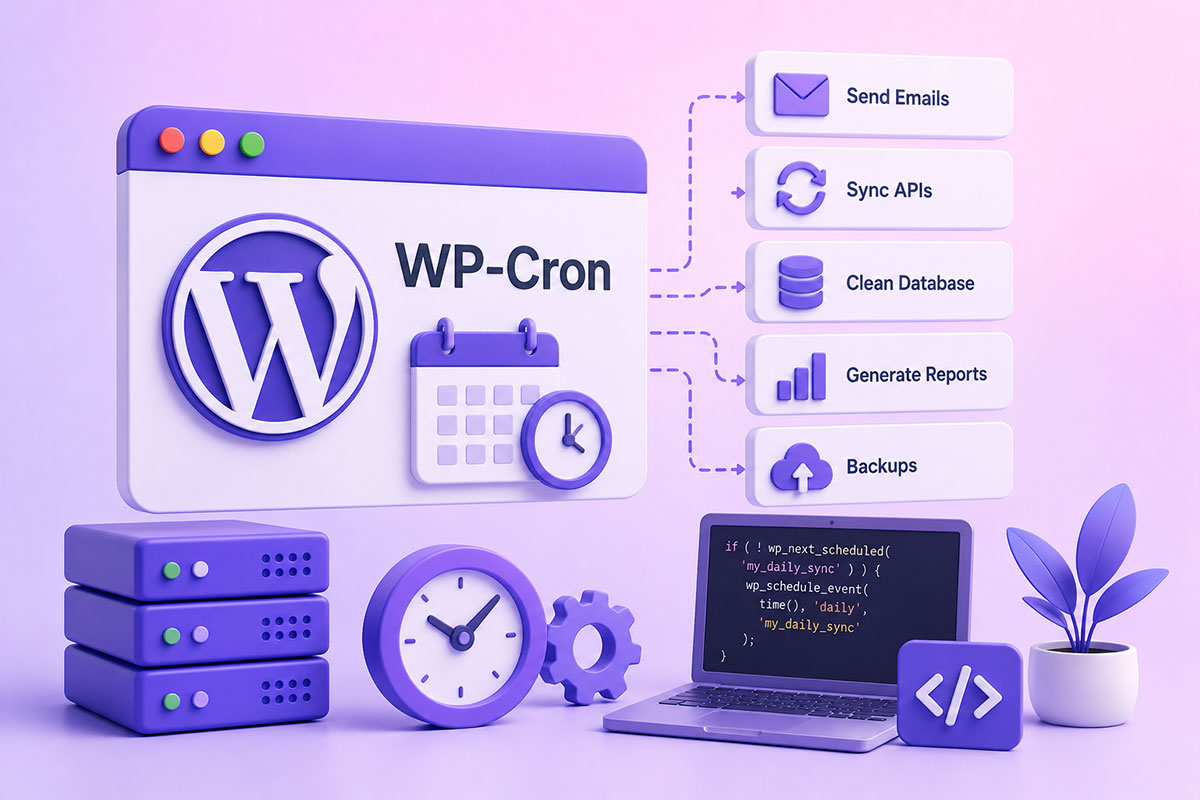
Why Background Tasks Matter
Modern WordPress websites do much more than display pages.
Behind the scenes, they constantly perform scheduled tasks such as:
- Publishing scheduled posts
- Sending emails
- Processing queues
- Syncing APIs
- Cleaning temporary data
- Running backups
- Updating inventory
- Importing data
- Generating reports
These background operations allow websites to automate repetitive work without requiring manual intervention.
WordPress provides a built-in scheduling system called WP-Cron, making it possible for plugins and themes to execute tasks automatically at predefined intervals. WordPress core itself uses WP-Cron for actions such as publishing scheduled posts and checking for updates.
What Is WP-Cron?
Despite its name, WP-Cron is not a true Linux cron job.
Traditional cron runs independently of website traffic.
WP-Cron behaves differently.
Whenever someone visits your website, WordPress checks whether any scheduled tasks are due. If so, it executes them during that request. On low-traffic sites this can lead to delayed execution, while on busy sites many page loads may repeatedly check for due events.
Common Uses for WP-Cron
I regularly use WP-Cron in custom WordPress projects for tasks such as:
API Synchronization
Keeping external systems synchronized with WordPress.
Examples include:
- CRM integrations
- POS systems
- Payment platforms
- Marketing tools
Email Processing
Scheduling:
- Reminder emails
- Reports
- Notifications
- Welcome emails
Instead of sending everything during a page request.
Database Maintenance
Automatically:
- Delete expired records
- Remove temporary files
- Archive historical data
- Clean logs
Scheduled Imports
Importing:
- Products
- Inventory
- Locations
- Customer information
from external APIs.
Report Generation
Generating analytics and business reports overnight when server activity is low.
How WP-Cron Works
The scheduling process is straightforward.
- Schedule an event.
- WordPress stores the event.
- A visitor loads any page.
- WordPress checks for due events.
- The scheduled callback executes.
Developers typically schedule recurring tasks using wp_schedule_event() with a timestamp, recurrence interval, and hook name.
Scheduling an Event
A simple recurring task might look like:
if ( ! wp_next_scheduled( 'my_daily_sync' ) ) {
    wp_schedule_event(
        time(),
        'daily',
        'my_daily_sync'
    );
}
The important part is checking wp_next_scheduled() first to avoid accidentally scheduling duplicate events.
Running the Task
add_action( 'my_daily_sync', 'run_daily_sync' );

function run_daily_sync() {

    // Perform synchronization

}
This keeps scheduling separate from execution, making the code easier to maintain.
Avoid Duplicate Cron Events
One of the most common mistakes is scheduling the same event every time code executes.
Incorrect:
wp_schedule_event(...);
Correct:
if ( ! wp_next_scheduled( 'my_hook' ) ) {
    wp_schedule_event(...);
}
Otherwise, hundreds of duplicate scheduled tasks can accumulate over time.
Always Clean Up
When your plugin is deactivated or uninstalled, remove scheduled events.
Example:
$timestamp = wp_next_scheduled( 'my_daily_sync' );

if ( $timestamp ) {
    wp_unschedule_event(
        $timestamp,
        'my_daily_sync'
    );
}
Cleaning up prevents orphaned cron jobs from continuing to run after the feature has been removed.
WP-Cron Limitations
Although WP-Cron is convenient, it’s important to understand its limitations.
Low-Traffic Websites
If nobody visits the site, scheduled events won’t execute until the next page request.
A task scheduled for 2:00 PM may actually run much later if there are no visitors.
High-Traffic Websites
On busy sites, many requests can trigger cron checks, creating unnecessary overhead.
Heavy background jobs should be designed carefully to avoid affecting visitor experience.
Long-Running Jobs
Cron callbacks should not:
- import 100,000 records
- send 50,000 emails
- process massive datasets
Instead:
- process data in batches
- save progress
- continue during the next scheduled run
When Should You Use a Real Server Cron?
For business-critical or high-traffic websites, I typically disable WP-Cron and let the server trigger it on a schedule.
In wp-config.php:
define( 'DISABLE_WP_CRON', true );
Then configure a server cron job (for example, every 5–15 minutes) to call wp-cron.php. This provides more predictable execution and avoids checking cron on every page load.
This approach is especially valuable for:
- WooCommerce stores
- Membership websites
- Learning platforms
- Multi-location platforms
- API synchronization
- Large import/export systems
Debugging Scheduled Events
When developing plugins, it’s useful to inspect scheduled tasks.
A tool such as WP Crontrol lets you:
- View scheduled events
- Run events manually
- Delete failed events
- Verify execution timing
It’s an excellent companion during development and troubleshooting.
Best Practices
When working with WP-Cron:
- Check wp_next_scheduled() before creating recurring events.
- Unschedule events during plugin deactivation or uninstall.
- Keep cron callbacks lightweight.
- Process large jobs in batches.
- Add logging for debugging and monitoring.
- Use a real server cron for production sites where timing matters.
- Periodically review and remove obsolete scheduled tasks.
Real-World Examples
In my own projects, WP-Cron has been used for:
- Synchronizing multi-location business data from third-party APIs
- Generating business intelligence reports overnight
- Processing scheduled email and SMS notifications
- Importing inventory and product catalogs
- Cleaning temporary data and application logs
- Refreshing cached analytics and dashboard metrics
The common theme across all these implementations is reliability. Good scheduling isn’t just about automating work—it’s about ensuring those tasks execute consistently without impacting website performance.
Final Thoughts
WP-Cron is one of WordPress’s most powerful developer features, yet it’s often misunderstood.
For lightweight automation and standard WordPress functionality, it’s an excellent solution. As applications become larger and more business-critical, understanding when to transition to a server-managed cron becomes just as important.
Whether you’re building custom plugins, business portals, or API-driven applications, a well-designed scheduling strategy can significantly improve reliability, scalability, and maintainability.