
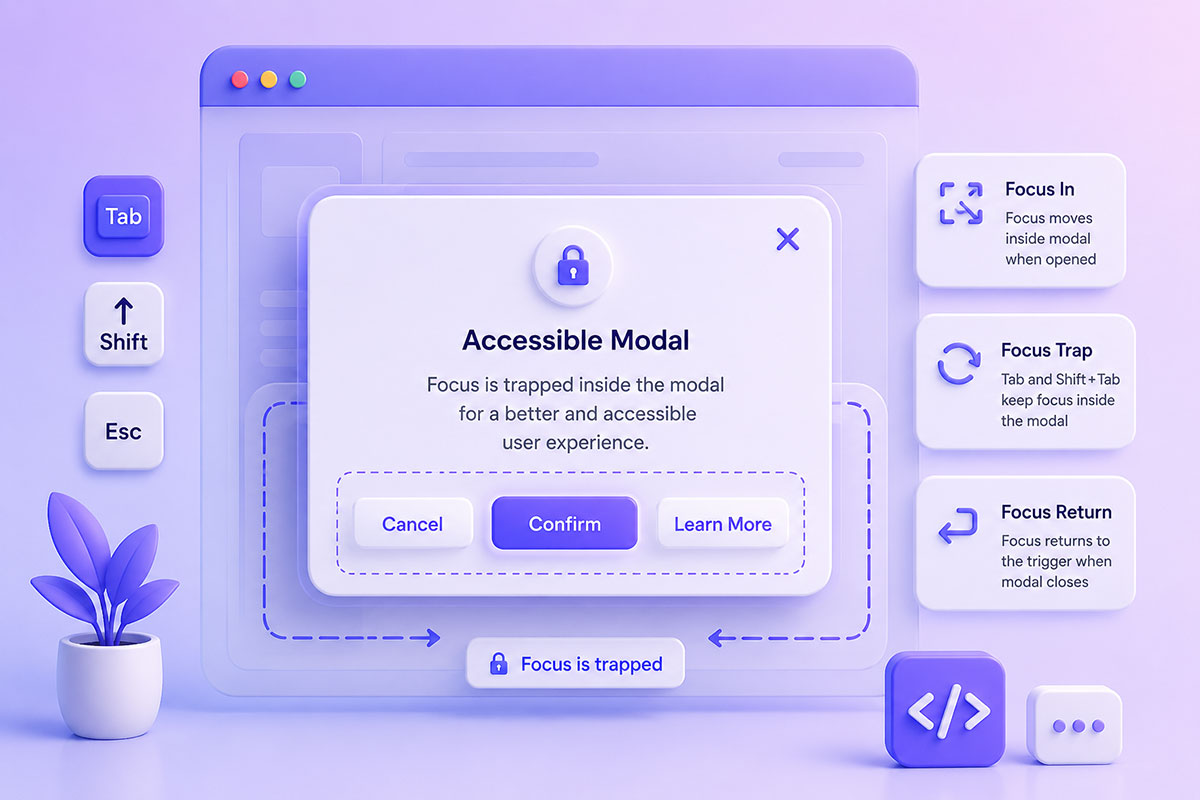
Why Focus Management Matters
Keyboard accessibility is often overlooked during web development, yet it’s a fundamental part of creating usable and inclusive applications.
When users navigate a website using the Tab key, the browser moves focus between interactive elements such as links, buttons, form controls, and other focusable components.
In many situations, this default behavior is exactly what we want.
However, when a modal dialog, lightbox, slide-out panel, or popup is displayed, allowing keyboard focus to move outside that component creates a confusing experience. Users can accidentally tab to elements hidden behind the overlay while the dialog remains open.
This is where focus trapping becomes essential.
Modern accessibility guidance recommends keeping keyboard focus within an active modal until it is dismissed, while also restoring focus to the triggering element when the modal closes.
What Is Focus Trapping?
Focus trapping means restricting keyboard navigation so that users can only move between focusable elements contained within a specific section of the page.
Instead of allowing focus to continue through the rest of the document:
First Input
↓
Second Input
↓
Submit Button
↓
Header Menu 
Footer Links
focus is looped back:
First Input
↓
Second Input
↓
Submit Button
↓
First Input
Likewise, pressing Shift + Tab on the first element returns focus to the last focusable element.
This creates a predictable keyboard experience and is considered a best practice for dialogs and other modal interfaces.
Common Use Cases
Focus trapping is useful whenever the user should interact with a single interface before returning to the rest of the page.
Examples include:
- Login dialogs
- Signup forms
- Lightboxes
- Image galleries
- Shopping cart drawers
- Mobile navigation menus
- Search overlays
- Cookie consent dialogs
- Multi-step forms
How It Works
The concept is straightforward:
- Identify the first and last focusable elements.
- Listen for Tab and Shift + Tab.
- When the user tabs forward from the last element, move focus back to the first.
- When the user tabs backward from the first element, move focus to the last.
This creates a continuous keyboard loop inside the component.
Example Implementation
jQuery(document).ready(function () {

    jQuery('#lastElementId').on('keydown', function (e) {

        var isTabPressed = (e.key === 'Tab' || e.keyCode === KEYCODE_TAB);

        if (!isTabPressed) {
            return;
        }

        if (e.shiftKey) /* shift + tab */ {
            return;
        } else /* tab */ {
            jQuery('#firstElementId').focus();
            e.preventDefault();
        }

    });

    jQuery('#firstElementId').on('keydown', function (e) {

        var isTabPressed = (e.key === 'Tab' || e.keyCode === KEYCODE_TAB);

        if (!isTabPressed) {
            return;
        }

        if (e.shiftKey) /* shift + tab */ {
            jQuery('#lastElementId').focus();
            e.preventDefault();
        } else /* tab */ {
            return;
        }

    });
});
After the code, explain:
- Listen for keydown
- Detect the Tab key
- Check whether Shift is pressed
- Redirect focus when reaching the beginning or end of the container
Modern Considerations
While this approach still works well, modern applications often require additional focus management.
For example:
- Automatically moving focus into the dialog when it opens
- Returning focus to the triggering button when it closes
- Supporting dynamically generated focusable elements
- Handling the Escape key to dismiss the dialog
- Preventing interaction with background content
Libraries such as focus-trap provide these behaviors out of the box for complex applications.
Accessibility Best Practices
When implementing modal dialogs:
- Move focus into the dialog when it opens.
- Keep keyboard focus inside the dialog while it remains open.
- Support both Tab and Shift + Tab.
- Allow the Escape key to close the dialog.
- Return focus to the element that opened the dialog.
- Add appropriate ARIA attributes such as role="dialog" and aria-modal="true" where appropriate.
Final Thoughts
Focus trapping may seem like a small implementation detail, but it has a significant impact on usability and accessibility.
Whether you’re building a WordPress plugin, a Vue.js application, or a custom JavaScript interface, proper keyboard navigation creates a better experience for all users—not just those using assistive technologies.
It’s one of those small engineering decisions that separates a functional interface from a polished, professional application.