
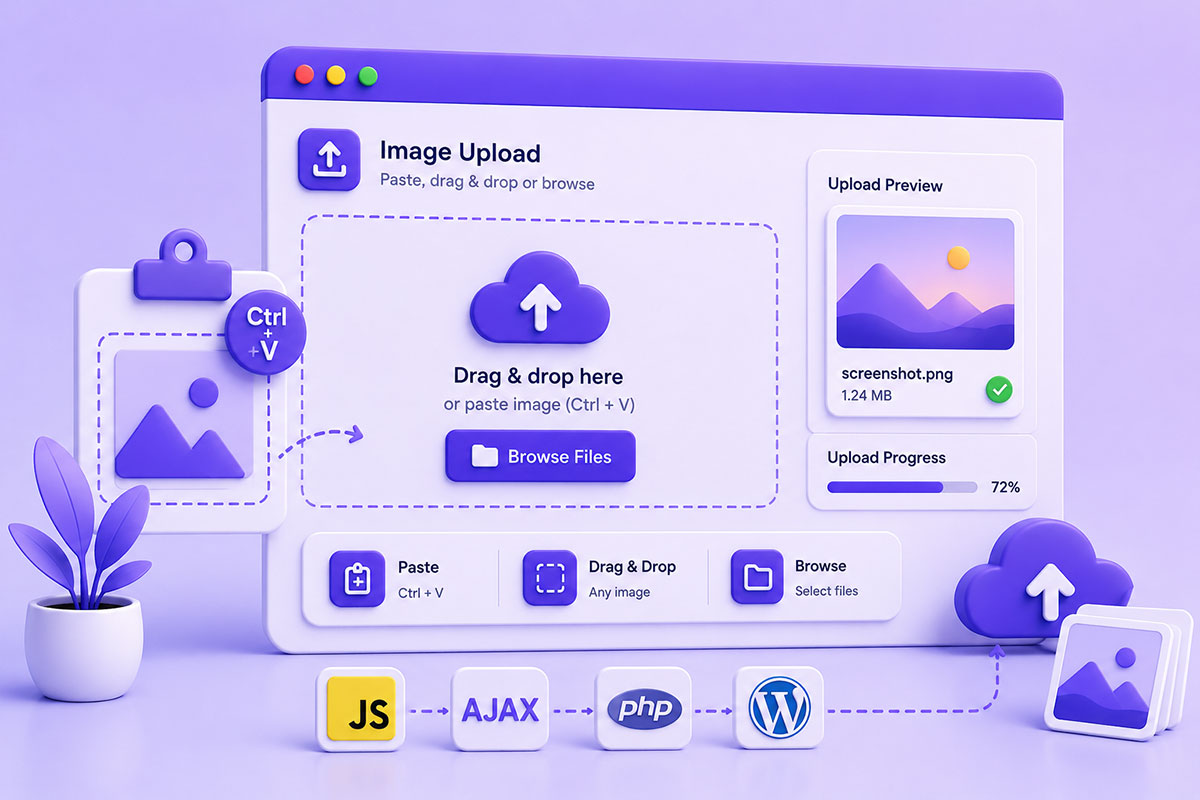
Why Paste-to-Upload Improves User Experience
Uploading files traditionally involves several steps:
Click Upload
↓
Browse Files
↓
Select File
↓
Open
For users who already have an image in their clipboard—perhaps from a screenshot tool or image editor—this workflow feels unnecessarily slow.
Modern web applications increasingly allow users to simply press:
Ctrl + V
or
⌘ + V
to upload images instantly.
You’ll find this experience in tools such as:
- Slack
- Discord
- GitHub Issues
- Jira
- Linear
- ChatGPT
- Help desk systems
It reduces friction and makes file uploads significantly faster.
How Paste Upload Works
When a user pastes content into a web page, the browser fires a paste event.
That event exposes a ClipboardEvent, whose clipboardData property contains a DataTransfer object holding clipboard items, including files such as images when available.
The basic flow is:
User copies image
↓
Presses Ctrl + V
↓
Browser fires paste event
↓
Clipboard inspected
↓
Image extracted
↓
AJAX upload
↓
Server saves file
Listening for the Paste Event
The simplest implementation begins by listening for the browser’s paste event.
document.addEventListener('paste', function (event) {

    // Handle clipboard contents

});
The event is triggered whenever the user performs a paste operation within the page.
Detecting Images
Clipboard data may contain:
- Plain text
- HTML
- Images
- Files
The implementation should inspect the clipboard items and identify image content before uploading it.
Modern browsers expose these items through the clipboard event, allowing applications to distinguish between text and binary data.
Uploading with AJAX
Once the image is extracted, it can be appended to a FormData object and sent asynchronously.
const formData = new FormData();
formData.append('image', imageFile);
From there, upload using:
- fetch()
- XMLHttpRequest
- jQuery AJAX (for legacy applications)
Although many legacy WordPress projects still use jQuery, modern applications increasingly use the Fetch API for new development.
Supporting Drag & Drop Too
If you’re already implementing paste uploads, supporting drag-and-drop requires very little additional work.
Instead of offering:
Upload Image
create a richer upload area:
Drag files here

or

Paste with Ctrl + V

or

Click to browse
This gives users three intuitive ways to provide files without maintaining separate upload logic.
Clipboard API vs Paste Events
Paste Event
Ideal for upload workflows.
Ctrl + V
↓
paste event
↓
clipboardData
Simple, immediate, and widely supported.
Async Clipboard API
Modern browsers also provide the asynchronous Clipboard API through navigator.clipboard, which can read and write clipboard data programmatically in secure contexts. It offers richer capabilities but comes with security requirements and often requires user activation or permission.
For upload interfaces, the traditional paste event remains the simplest solution.
WordPress Applications
Paste uploads are particularly useful in custom WordPress projects such as:
- Support portals
- CRM systems
- Client dashboards
- Internal admin tools
- Media managers
- Ticketing systems
- Chat interfaces
Instead of forcing users through the Media Library every time, pasted images can be uploaded directly and attached to the relevant record.
Security Considerations
Accepting clipboard images should follow the same security practices as standard file uploads.
Always:
- Validate MIME type
- Restrict file size
- Generate unique filenames
- Store uploads outside executable paths where appropriate
- Verify user permissions before accepting uploads
Never assume clipboard data is trustworthy simply because it originated from the user’s device.
Common Mistakes
Supporting Only File Browsing
Modern users increasingly expect drag-and-drop and paste support.
Uploading Everything Automatically
Give users feedback before committing uploads when appropriate.
A preview often improves the experience.
Ignoring Non-Image Clipboard Content
Users may paste:
- Text
- URLs
- HTML
- Screenshots
- Files
Your application should gracefully ignore unsupported types.
Large Screenshot Uploads
Screenshots can be several megabytes.
Consider:
- Image compression
- Size limits
- Client-side resizing
- Progress indicators
before uploading.
Real-World Perspective
I’ve implemented clipboard-based uploads in business applications where users frequently share screenshots for support, bug reports, and internal documentation.
Allowing users to paste directly into the browser significantly reduced friction compared to traditional file dialogs, especially for teams that rely on screenshots throughout their daily workflows.
When combined with drag-and-drop and asynchronous uploads, it creates a much smoother experience for both desktop and mobile users.
Best Practices
When implementing paste uploads:
- Support paste, drag-and-drop, and file browsing together.
- Validate files before uploading.
- Provide image previews.
- Show upload progress.
- Handle errors gracefully.
- Use modern browser APIs where appropriate while maintaining compatibility with existing applications.
- Design the interface so users immediately understand that paste is supported.
Final Thoughts
Copy-and-paste uploads are a small feature that can make a significant difference to user experience.
By leveraging browser clipboard events and asynchronous uploads, developers can eliminate unnecessary steps and create interfaces that feel fast, intuitive, and modern.
Whether you’re building a WordPress plugin, a customer portal, a help desk, or a business dashboard, supporting paste-to-upload is a practical enhancement that users quickly come to appreciate.