
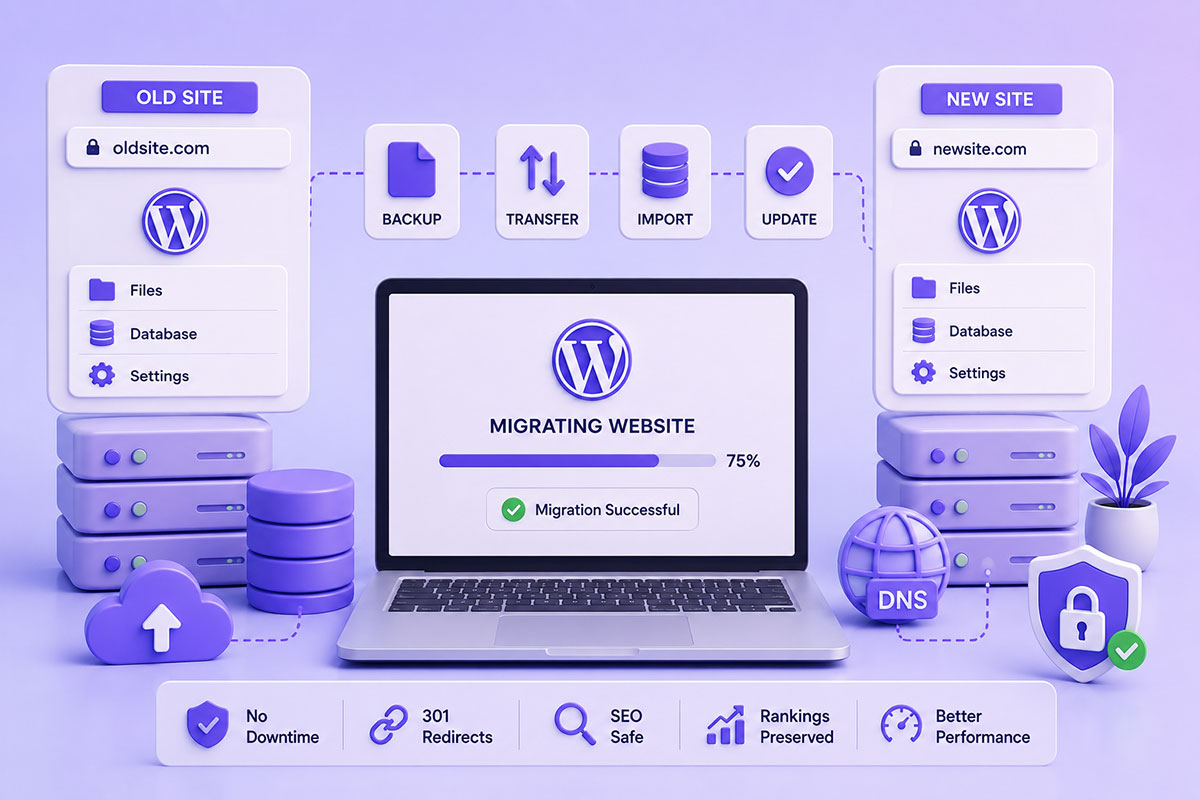
Why Website Migrations Need Planning
Migrating a WordPress website sounds simple:
- Copy the files
- Export the database
- Import everything
- Update the domain
Unfortunately, real-world migrations are rarely that straightforward.
Without careful planning, a migration can result in:
- Broken images
- Database connection errors
- 404 pages
- Mixed content warnings
- Plugin failures
- Email issues
- SEO ranking drops
Whether you’re moving to a new hosting provider, launching a redesigned website, or changing domains entirely, a structured migration process helps minimize downtime and reduces the risk of unexpected issues.
Common Migration Scenarios
Over the years I’ve migrated WordPress websites in many different situations.
Typical examples include:
- Shared hosting → VPS
- cPanel → cPanel
- cPanel → Cloud hosting
- Local development → Production
- Staging → Live
- Old domain → New domain
- HTTP → HTTPS
Each scenario requires slightly different considerations, but the overall workflow remains similar.
Step 1 – Create Complete Backups
Before making any changes, create backups of:
Website Files
Including:
- WordPress core
- Themes
- Plugins
- Uploads
- Custom scripts
Database
Export the full MySQL database using:
- phpMyAdmin
- WP-CLI
- Hosting tools
Never begin a migration without a verified backup.
Step 2 – Prepare the New Server
Before copying anything, configure:
- PHP version
- MySQL/MariaDB
- Required PHP extensions
- Memory limits
- SSL certificate
- Database
- DNS (if required)
Matching the PHP version between the old and new environments can help avoid compatibility issues during migration.
Step 3 – Transfer Website Files
Copy:
wp-admin/
wp-content/
wp-includes/
along with:
wp-config.php
.htaccess
You can use:
- cPanel File Manager
- FTP/SFTP
- rsync
- SSH
- Backup archives
For larger websites, tools like rsync or SSH are typically faster and more reliable than downloading and re-uploading files.
Step 4 – Import the Database
Create a new database.
Import the SQL backup.
Update:
DB_NAME
DB_USER
DB_PASSWORD
DB_HOST
inside:
wp-config.php
Once imported, verify that WordPress can connect successfully before proceeding.
Step 5 – Update the Domain (If Required)
If the domain changes:
oldsite.com
↓
newsite.com
the database still contains references to the old URL.
Those references must be updated.
Instead of manually editing SQL, use a search-and-replace tool that understands WordPress serialized data. WP-CLI’s search-replace command is a popular choice because it safely updates URLs without corrupting serialized values.
Step 6 – Update DNS
If moving to a new server:
Update:
- A Record
- AAAA Record (if used)
Reduce the DNS TTL before migration when possible to shorten propagation time.
Step 7 – Test Before Going Live
I never point DNS immediately.
Instead I test:
- Homepage
- Internal pages
- Contact forms
- WooCommerce checkout
- Images
- Login
- Admin area
- APIs
- Emails
- Scheduled tasks
Only after everything works do I update DNS.
Step 8 – Fix Permalinks
One of the most common post-migration issues is:
404 Not Found
The fix is often simple:
Settings
↓
Permalinks
↓
Save Changes
Saving permalinks regenerates WordPress rewrite rules and often resolves broken page URLs after a migration.
Don’t Forget SSL
If the new server uses HTTPS:
Check:
- Mixed content
- Internal links
- Images
- JavaScript
- CSS
- Canonical URLs
Every page should load securely without browser warnings.
SEO Considerations
Changing hosting alone generally has little impact on SEO if URLs remain unchanged.
Changing domains is different.
To preserve rankings:
- Implement 301 redirects from every old URL to its new equivalent.
- Update Google Search Console using the Change of Address tool.
- Keep redirects active for at least a year.
- Update XML sitemaps and resubmit them.
- Monitor crawl errors after launch.
Temporary ranking fluctuations after a domain migration are normal, but proper redirects help preserve search equity.
Manual Migration vs Plugins
Manual Migration
Ideal when you need:
- Complete control
- Large website support
- Custom server configuration
Enterprise projects
Migration Plugins
Popular tools can simplify migrations by packaging files and the database into a single export/import process.
They’re excellent for many small-to-medium websites but may have limitations based on site size or hosting environment.
Common Mistakes
Skipping Backups
Always have a rollback plan.
Forgetting URL Replacement
This leads to broken images and incorrect internal links.
Ignoring Serialized Data
Direct SQL replacements can corrupt WordPress option values.
Use WordPress-aware tools.
Testing Only the Homepage
A successful homepage doesn’t guarantee:
- forms
- APIs
- logins
- WooCommerce
- scheduled tasks
are functioning correctly.
Changing DNS Too Early
Always verify the new server before switching traffic.
Real-World Perspective
Most migrations I perform involve more than simply copying a website.
Typical projects include:
- Moving agencies between hosting providers
- Launching redesigned client websites
- Migrating WooCommerce stores with minimal downtime
- Moving multi-location business platforms
- Reconfiguring DNS, SSL, CDN, and email services
- Testing API integrations after deployment
A successful migration isn’t measured by whether the homepage loads—it’s measured by whether every business-critical feature continues to work after the switch.
Best Practices
When planning a WordPress migration:
- Create verified backups.
- Match PHP versions where practical.
- Test the new environment thoroughly.
- Use WordPress-aware search-and-replace tools.
- Implement 301 redirects for domain changes.
- Regenerate permalinks.
- Verify SSL.
- Check emails, cron jobs, and third-party integrations.
- Monitor Search Console after launch.
Final Thoughts
Migrating a WordPress website is more than moving files from one server to another.
A well-executed migration protects user experience, preserves SEO, minimizes downtime, and ensures business operations continue uninterrupted.
Whether you’re moving to a faster host, launching a redesigned site, or changing domains, taking a structured, methodical approach is the difference between a smooth deployment and hours of troubleshooting.