
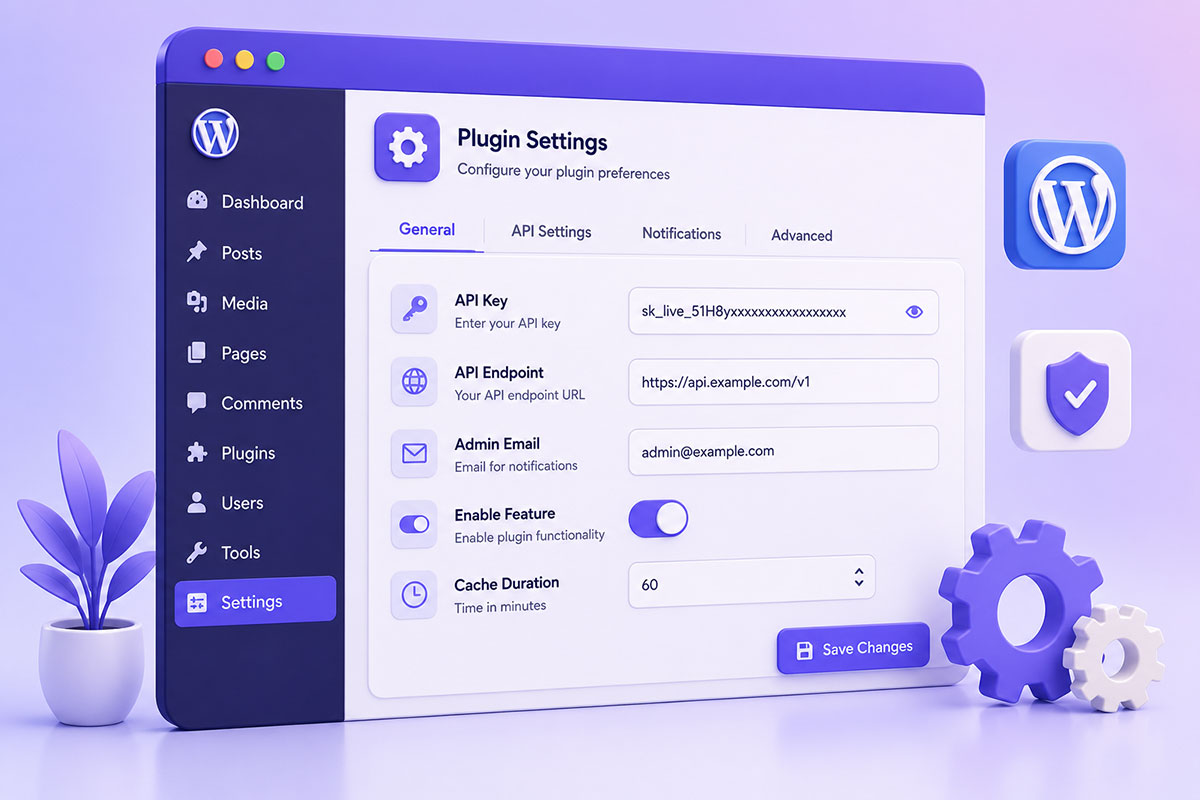
Why Every WordPress Plugin Needs a Settings Page
Most WordPress plugins eventually need configuration.
Whether you’re building a small utility plugin or a complex SaaS integration, users need a way to control how the plugin behaves.
Typical settings include:
- API credentials
- Feature toggles
- Email notifications
- Default values
- Cache settings
- Third-party integrations
- Display preferences
While it’s possible to build a custom admin form manually, WordPress provides a much better solution:
The WordPress Settings API.
Using the Settings API ensures consistent admin interfaces, automatic option saving, nonce protection, and built-in sanitization hooks.
What Is the WordPress Settings API?
The Settings API is a framework that helps developers build secure, maintainable administration pages.
Instead of manually processing forms, you register:
- Settings
- Sections
- Fields
- Sanitization callbacks
WordPress then handles:
- Saving options
- Loading values
- Security nonces
- Success messages
This significantly reduces boilerplate code while following WordPress development standards.
Typical Plugin Settings
Most plugins require configuration similar to:
API Settings
- API Key
- Secret Key
- Endpoint URL
General Settings
- Enable plugin
- Debug mode
- Default values
Notifications
- Email address
- Send reports
- Logging
Advanced Settings
- Cache duration
- Synchronization interval
- Timeout values
The Building Blocks
1. Register the Setting
Every option should first be registered.
register_setting(
    'my_plugin_settings',
    'my_plugin_options'
);
Registering the setting tells WordPress how the option should be managed. Options should be registered before using settings fields so WordPress can save them automatically.
2. Create a Settings Section
Sections help organize related settings.
Example:
General Settings

API Configuration

Notifications

Advanced
As plugins grow, sections make the interface much easier to navigate.
3. Add Settings Fields
Each field belongs to a section.
Examples:
- Text input
- Checkbox
- Select dropdown
- Radio buttons
- Number field
- Password field
The field callback outputs the HTML, while the Settings API handles persistence.
4. Display the Form
Your settings page typically includes:
settings_fields();

do_settings_sections();

submit_button();
These functions generate the hidden security fields, output registered sections and fields, and render a standard WordPress save button.
Storing Multiple Settings
One design decision you’ll face is whether to save:
Multiple Options
plugin_api_key

plugin_email

plugin_timeout
or
A Single Options Array
plugin_options

├── api_key
├── email
├── timeout
├── debug
For most plugins, I prefer storing related settings in a single options array. It keeps related configuration together and makes exporting, importing, and retrieving settings simpler.
Sanitization Matters
Never save user input directly.
Every setting should be validated and sanitized before storage.
Examples include:
- sanitize_text_field()
- sanitize_email()
- esc_url_raw()
- Integer validation
- Boolean conversion
The Settings API allows you to define a sanitize_callback when registering a setting so every save operation passes through validation.
Organizing Larger Settings Pages
As plugins become more sophisticated, the number of settings increases.
Rather than displaying dozens of fields on one screen, consider grouping them into logical sections such as:
General
Basic plugin configuration.
Integrations
API keys and external services.
Notifications
Emails, SMS, webhooks.
Logging
Debug mode and log retention.
Advanced
Developer-oriented configuration.
This structure improves usability and scalability.
Common Mistakes
Creating Custom Forms Without the Settings API
You’ll end up reinventing functionality WordPress already provides.
Forgetting Sanitization
Every value submitted by users should be validated before being stored.
Too Many Individual Options
Hundreds of separate options can become difficult to manage.
Group related settings where appropriate.
No Default Values
Always provide sensible defaults so the plugin works immediately after activation.
Poor Organization
Avoid long pages with dozens of unrelated settings.
Group fields into meaningful sections.
Real-World Applications
Throughout my projects, settings pages commonly include:
- Twilio credentials
- Stripe configuration
- OpenAI API keys
- Google Analytics settings
- AWS credentials
- Synchronization schedules
- Business rules
- Feature flags
- Reporting preferences
A well-designed settings page allows non-technical administrators to configure complex functionality without modifying code.
Best Practices
When building plugin settings:
- Use the WordPress Settings API.
- Register settings before creating fields.
- Sanitize every input.
- Group related settings logically.
- Provide helpful descriptions.
- Supply default values.
- Keep the interface consistent with WordPress admin conventions.
- Plan for future expansion instead of designing only for today’s requirements.
Final Thoughts
The quality of a plugin isn’t determined solely by its functionality—it also depends on how easy it is to configure and maintain.
A thoughtfully designed settings page reduces support requests, improves usability, and makes plugins easier to extend over time.
By leveraging the WordPress Settings API instead of building custom configuration systems, developers benefit from WordPress’s built-in security, consistency, and long-term compatibility.