
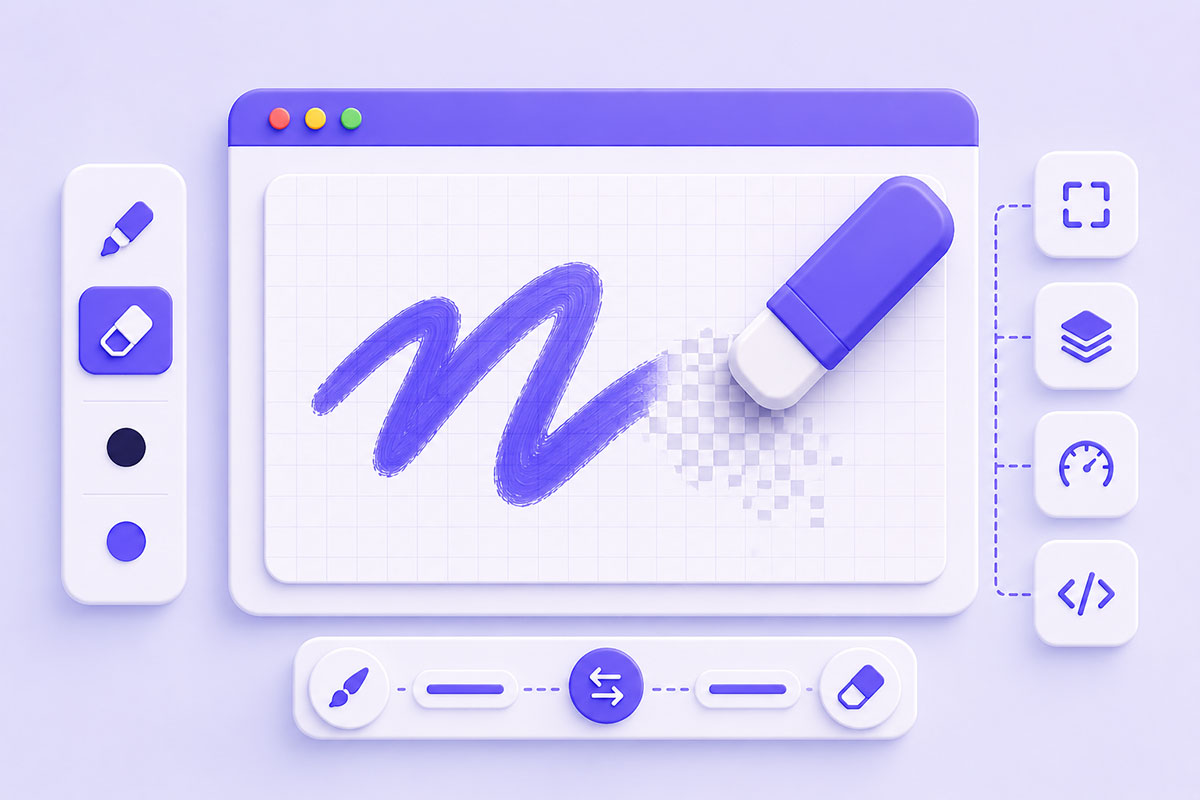
Why Canvas Erasing Isn’t as Simple as It Looks
The HTML5 <canvas> element gives developers complete control over drawing pixels, making it ideal for applications such as:
- Digital whiteboards
- Signature pads
- Image annotation tools
- Drawing applications
- Online design tools
- Educational software
- Interactive games
Drawing is straightforward—simply render lines or shapes.
Erasing, however, is different.
A common beginner’s approach is to draw with the background color, usually white. While this may appear to work, it only hides the drawing and fails when the background contains gradients, images, or transparency.
The proper solution is to remove pixels rather than paint over them. HTML Canvas provides this capability through the globalCompositeOperation property.
How Canvas Drawing Works
Every time you draw on a canvas:
Canvas
↓
Line
↓
Circle
↓
Image
↓
Text
new pixels are placed on top of the existing ones.
The default compositing mode is:
source-over
meaning every new drawing appears above the existing canvas content.
Understanding
globalCompositeOperation
The globalCompositeOperation property controls how newly drawn graphics interact with pixels already present on the canvas.
Examples include:
- source-over
- destination-over
- destination-in
- destination-out
- copy
- xor
Each mode produces a different compositing effect.
The Secret Behind a Real Eraser
The compositing mode used by most canvas-based drawing applications is:
context.globalCompositeOperation = 'destination-out';
Rather than drawing a visible stroke, this mode removes existing pixels wherever the new stroke overlaps them, creating the effect of an eraser. This is the recommended approach for implementing an eraser because it truly clears pixels instead of painting over them.
Basic Example
const context = canvas.getContext('2d');

context.globalCompositeOperation = 'destination-out';

context.beginPath();

context.moveTo(x1, y1);

context.lineTo(x2, y2);

context.stroke();
Instead of producing another line, the stroke removes pixels from the existing drawing.
Switching Between Pen and Eraser
Most drawing applications simply change the compositing mode.
Drawing
context.globalCompositeOperation = 'source-over';
Erasing
context.globalCompositeOperation = 'destination-out';
This allows the same drawing logic to be reused while changing only how the canvas processes each stroke.
Why Not Draw in White?
Many beginner tutorials suggest:
context.strokeStyle = '#ffffff';
This only works when:
- the background is white
- there are no images
- there is no transparency
Problems appear immediately when the canvas contains:
- photographs
- textures
- transparent backgrounds
- exported PNGs
Using destination-out removes pixels regardless of what lies beneath, making it suitable for real-world applications.
Common Use Cases
This technique is used in many interactive applications.
Signature Pads
Allow users to erase mistakes naturally.
Image Editors
Remove selected regions without replacing them with a solid color.
Whiteboard Applications
Switch seamlessly between pen and eraser tools.
Annotation Tools
Erase highlights or freehand markings.
Educational Apps
Students can sketch, erase, and redraw diagrams.
Performance Considerations
Canvas applications receive many mouse or touch events while users draw.
To keep interactions smooth:
- Minimize unnecessary redraws.
- Use requestAnimationFrame() for animation-heavy tools.
- Avoid creating new objects inside every mouse-move event.
- Scale the canvas for high-DPI displays where appropriate.
- Batch expensive operations when possible.
Supporting Touch Devices
Modern drawing applications should support:
- Mouse
- Touch
- Stylus
- Apple Pencil
- Surface Pen
Using the Pointer Events API allows a single implementation to work across these input types, simplifying your event handling.
Common Mistakes
Drawing White Instead of Erasing
This doesn’t actually remove pixels.
Forgetting to Switch Back
After enabling:
destination-out
restore:
source-over
otherwise every subsequent stroke continues erasing.
Ignoring High-DPI Displays
Without scaling the canvas appropriately, drawings may appear blurry on Retina and other high-density screens.
Erasing Only on
mousemove
Smooth erasing requires continuous path drawing rather than isolated points. Connecting pointer positions with paths produces a much more natural result than repeatedly clearing small squares.
Real-World Perspective
Although HTML5 Canvas is often associated with games, I’ve found it equally valuable for business applications.
Projects involving document annotation, image manipulation, signatures, and custom drawing interfaces all benefit from understanding compositing operations.
The eraser is a perfect example of how a single Canvas API property can dramatically change application behavior without changing the underlying drawing logic.
Best Practices
When building a canvas drawing application:
- Use destination-out for erasing.
- Restore source-over when switching back to drawing.
- Keep drawing and erasing logic shared.
- Support mouse, touch, and stylus input.
- Test on high-DPI devices.
- Optimize for smooth rendering.
Final Thoughts
Creating a professional eraser tool isn’t about painting with the background color—it’s about understanding how the Canvas compositing model works.
By leveraging globalCompositeOperation, developers can build clean, performant drawing experiences that work with transparent canvases, images, and complex graphics.
Whether you’re building a signature pad, a collaborative whiteboard, or an image editor, mastering compositing is one of the most valuable skills in HTML5 Canvas development.